Note before completing this action:
Adjusting the count of an inventory via reconciliation should only be used to correct discrepancies between the recorded narcotic count and the actual physical count.
This action is intended for true count corrections—such as resolving documentation errors, correcting miscounts during initial setup, or addressing issues identified during an audit.
-
For customers using Control Values, this action may also be used to assign a new control value to a medication in an inventory without replacing the actual medication. This may need to be done in circumstances where the control value tag / label is damaged and cannot be reused.
If you are looking to add a medication from another inventory or remove a medication to send to another inventory, please complete a transfer - NOT a reconciliation*.
*Transfers maintain the required chain-of-custody trail and must be completed anytime narcotics physically move from one inventory to another.
Adding or Subtracting From the Inventory Count
1) Navigate to the inventory you wish to reconcile from the dropdown and select "Reconciliation"
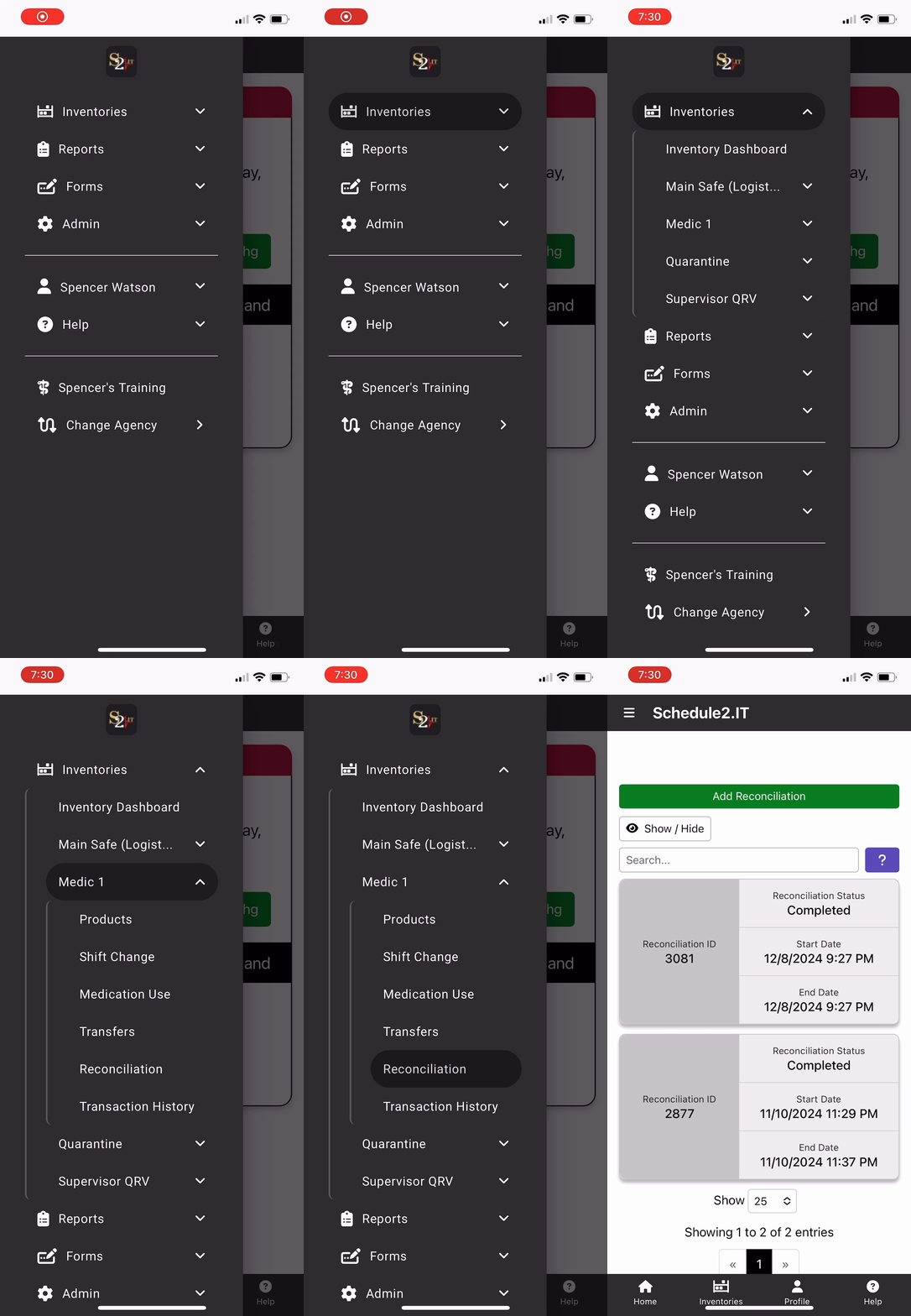
2) Click "Add Reconciliation" and select which products you wish to reconcile
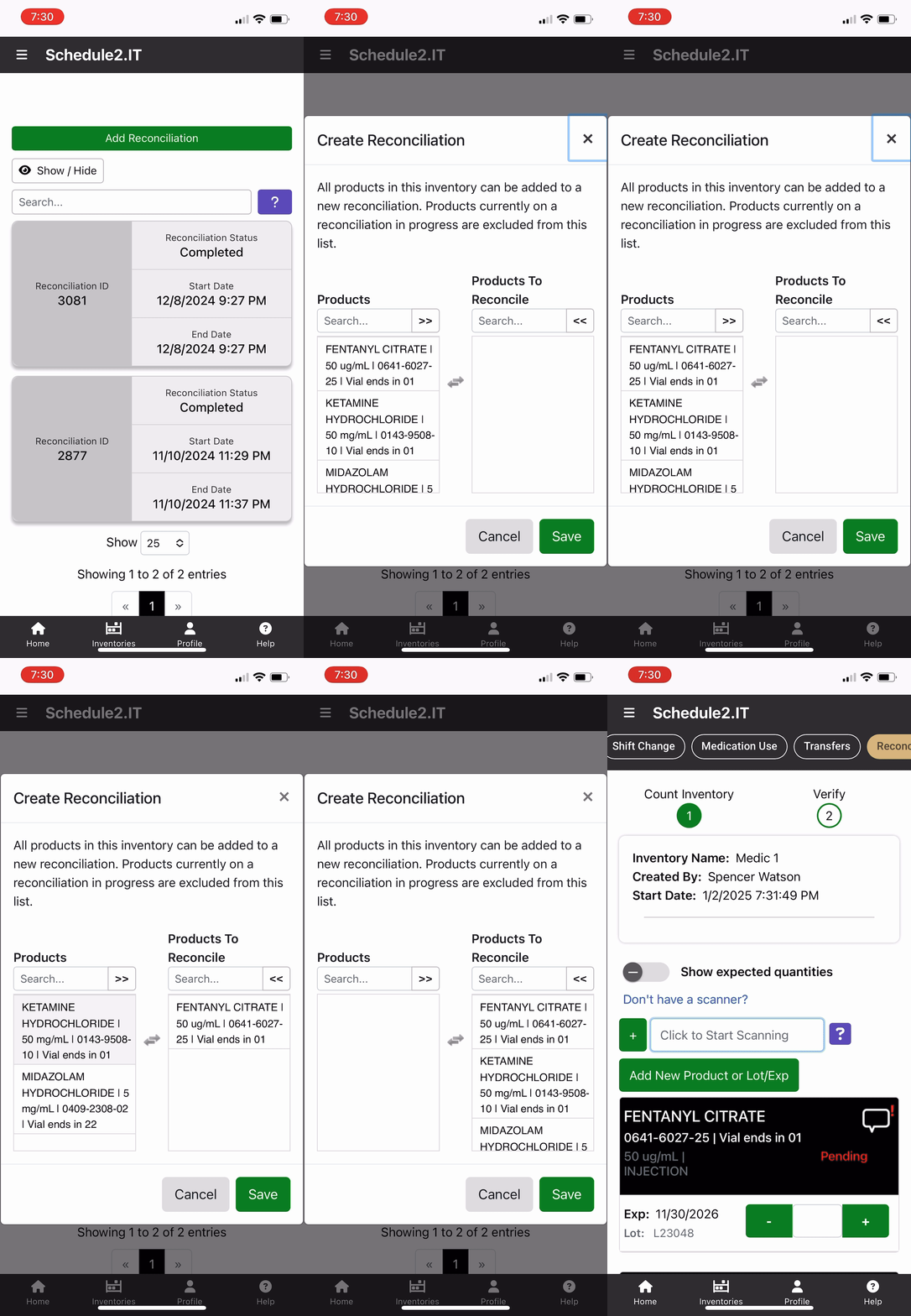
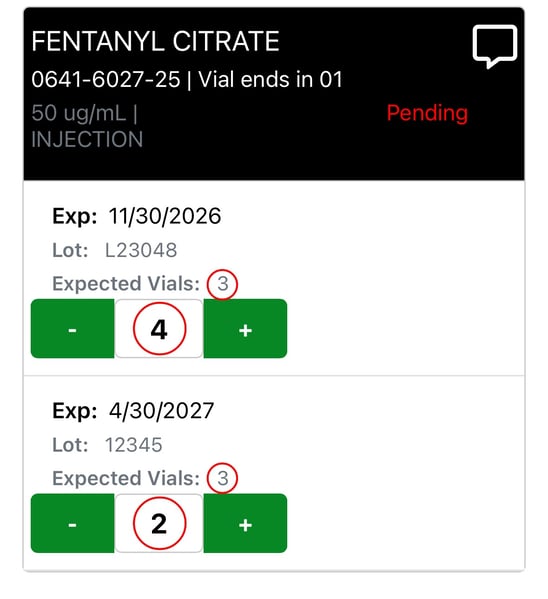
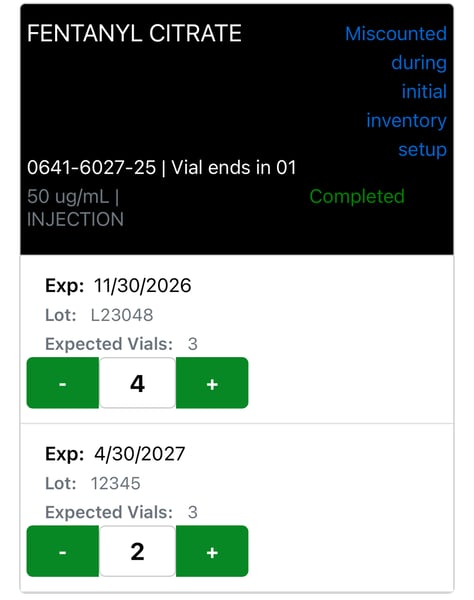
3) Adjust the count of a selected medication to reflect the actual physical count
The image below shows an example of an adjustment for a miscount that occurred during initial inventory setup where the quantities of the individual Lot #s were incorrectly entered.
4) Add Comment
Click on the  icon to add a comment that provides explanation for the adjustment.

After clicking Save, the status will now show as "completed"
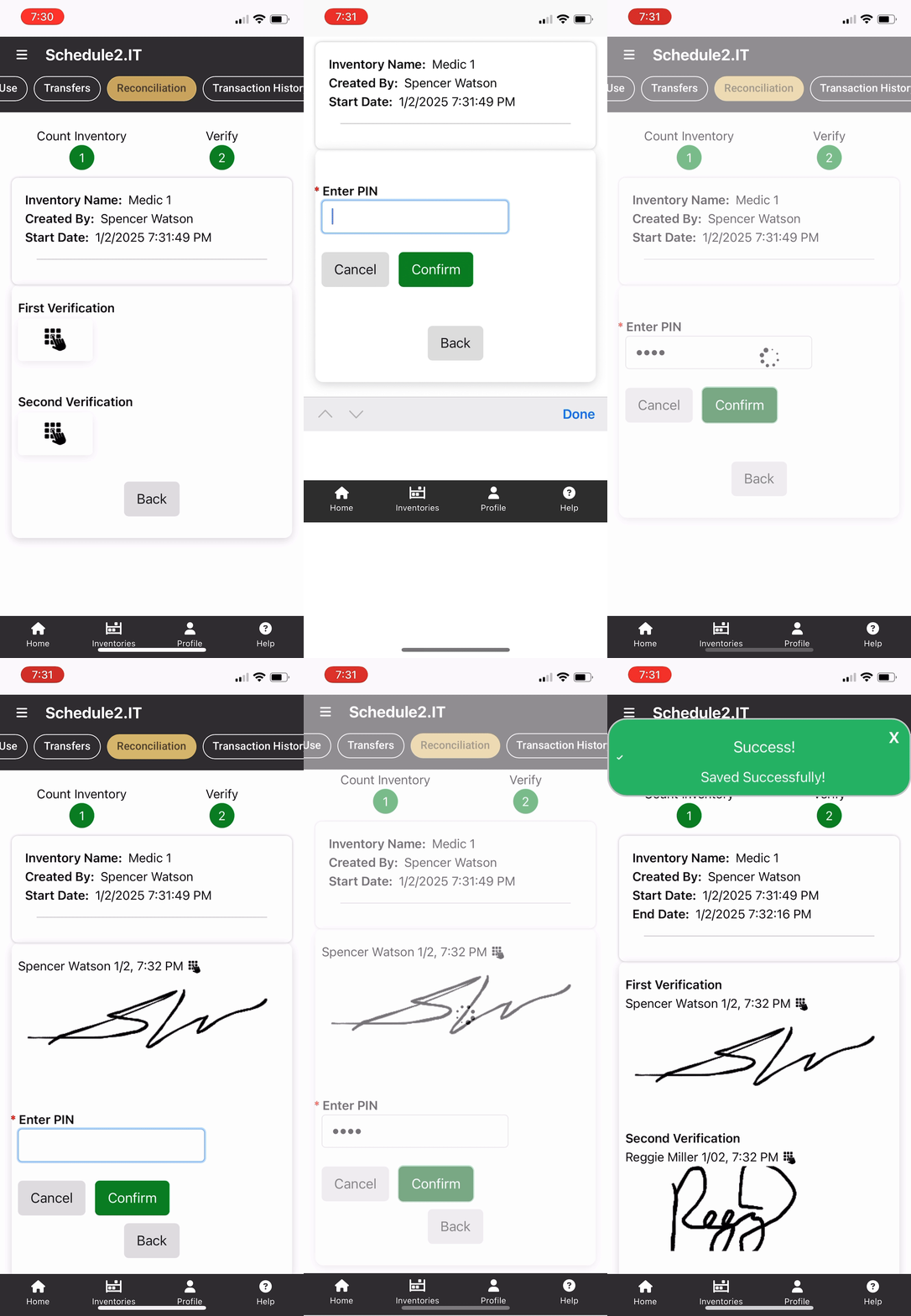
5) Proceed to Verification
Adjusting Inventory Count When Using Control Values
1) Select an inventory and add a reconciliation (steps 1 & 2 above)
2) Adjust the count of a selected medication to reflect the actual physical count
.jpg?width=670&height=581&name=Count%20Adjustment%20-%20CV%20(Labeled).jpg)
Subtracting a Medication
-
Leave the Control Value of the medication you wish to remove from the inventory count unselected. It should appear gray in color:
Adding a Medication
-
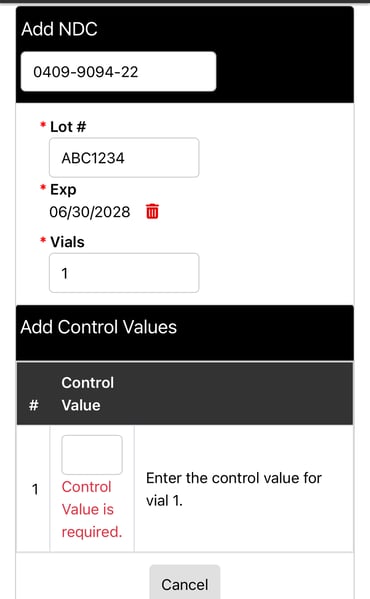
Click on "Add CV"
-
Confirm the NDC, Lot/Exp, and number of vials being added
-
Enter a Control Value for each vial being added
Replacing a Control Value
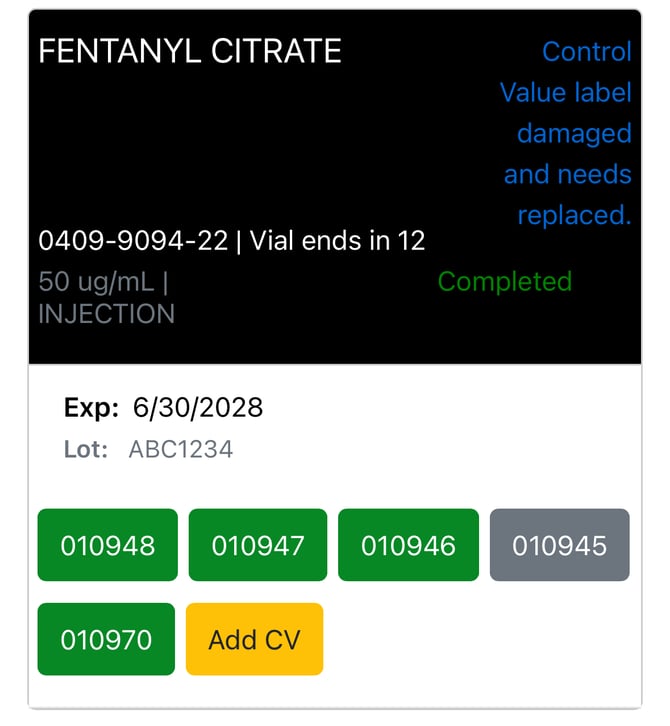
You may run into a situation where the control value tag / label becomes damaged, unscannable, or unreadable, but the medication vial remains sealed and intact. In this instance, you want to assign a new Control Value without replacing the medication itself.
Note: The process below is for manager level users. For admin level users, refer to this article on how to edit control values.
To do this, you will complete the same steps listed above, but will be both adding and removing a Control Value from the inventory during the count adjustment:
1) Leave the control value you are replacing unselected (gray) to remove it from the inventory
2) Add a new CV for the same medication, keeping the same NDC & Lot/Exp as the one being removed
3) Provide a comment to explain why the CV is being replaced
The image below is a completed example of this process. The CV label reading 010945 (unselected) was damaged and is being replaced with CV label 010970 (added as new CV).