
Shortcuts:
Understanding Schedule2.IT User Permission Roles
Upcoming permission-level changes
Conditional permissions and limitations
Inventory associations and feature settings
Federal & State Compliance Forms
Changing User Roles
1) Navigate to "User List"
Admin > Users > User List
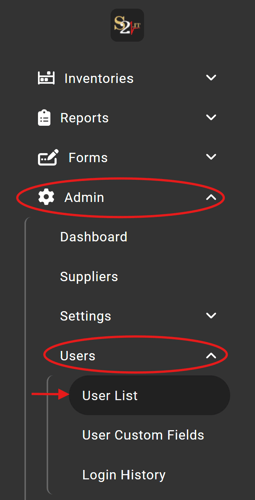
2) Select a user
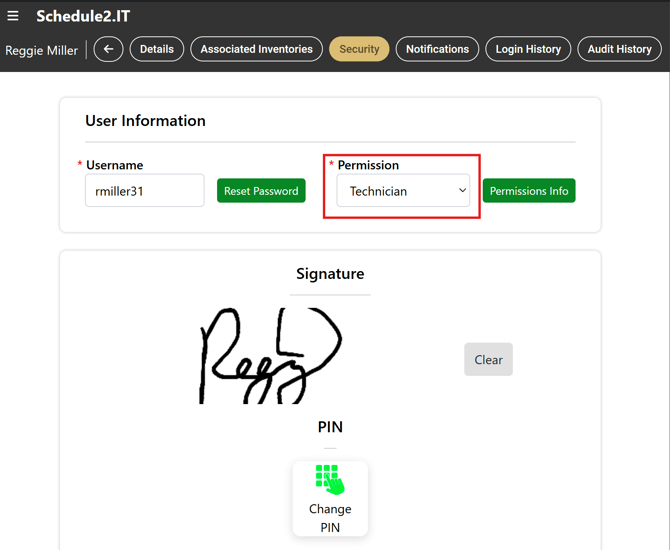
3) Navigate to the "Security" tab at the top menu
4) Select the desired permission for the user
Understanding Schedule2.IT User Permission Roles
Schedule2.IT uses role-based permissions to determine which agency information, inventories, workflows, reports, forms, and settings a user can access.
A user’s permission level is assigned separately for each agency. A person associated with multiple agencies may therefore have a different permission level in each agency.
Upcoming permission-level changes
Schedule2.IT is preparing the following updates:
- The current Technician permission level will be renamed Provider.
- A new, restricted Witness permission level will be added.
- A new View Only permission level will be added.
The Technician-to-Provider change is a terminology update only. Existing Technician users will automatically become Providers and retain their current permissions, agency associations, inventory associations, notifications, and system behavior. No manual reassignment will be required.
Existing users will not automatically become Witness or View Only users. Those roles must be assigned by an authorized administrator.
Until the update is released, portions of Schedule2.IT may continue to display Technician, and the Witness and View Only roles may not yet be available.
Permission-level overview
Witness
The Witness role is intended for personnel who need to provide required witness or secondary verification without receiving normal operational access.
A Witness can maintain their own account and use their PIN and signature in fields specifically designated for a witness or secondary verifier.
A base Witness cannot view operational records, access inventories, document Medication Use, perform transfers, run reports, or complete administrative work.
Provider
Provider is the upcoming name for the current Technician role.
This role is intended for paramedics, EMTs, nurses, and other personnel who routinely handle, administer, count, transfer, or take possession of controlled substances.
Providers can perform routine work for inventories assigned to them but do not receive user-management, reconciliation, administrative-settings, compliance-form, or standard reporting access.
Manager
The Manager role is intended for operational supervisors, logistics personnel, and other users who need broader operational oversight.
Managers receive Provider capabilities plus access to functions such as:
- User management
- Replenishment
- Reconciliation
- Shift Change auditing
- Operational reports
- Editing existing lot numbers and expiration dates
- Replacing existing Control Value numbers
- Completing the Biennial DEA Inventory workflow
Managers do not receive full agency-configuration access and cannot amend or delete completed Medication Use records.
Admin
The Admin role is intended for personnel responsible for managing the agency’s Schedule2.IT environment.
Admins receive all Manager capabilities plus access to:
- Agency and feature settings
- Inventory configuration
- Product and Control Value setup
- Custom fields
- Verification settings
- User notification administration
- Agency-wide audit information
- Supported federal and state compliance forms
- Completed-record correction tools
View Only
View Only is a separate, non-linear permission level. It is not a lower version of Provider or a higher version of Manager.
A View Only user can view the same agency-scoped information that an Admin can view, including:
- Dashboards and operational summaries
- Active and inactive inventories
- Medication Use records
- Transactions and custody history
- Reports
- Compliance forms
- Audit history
- User lists and Admin-visible user details
- Agency settings, features, and integrations
A View Only user may print, download, or export information they are authorized to view but cannot change it.
View Only users cannot initiate, edit, complete, delete, approve, configure, import, or otherwise modify operational or administrative information.
The only approved operational exception is Medication Use Review. A View Only user who is separately designated as a Medication Use Reviewer may complete the existing clinical signoff when Medication Use Review is enabled for the agency.
Operational permission matrix
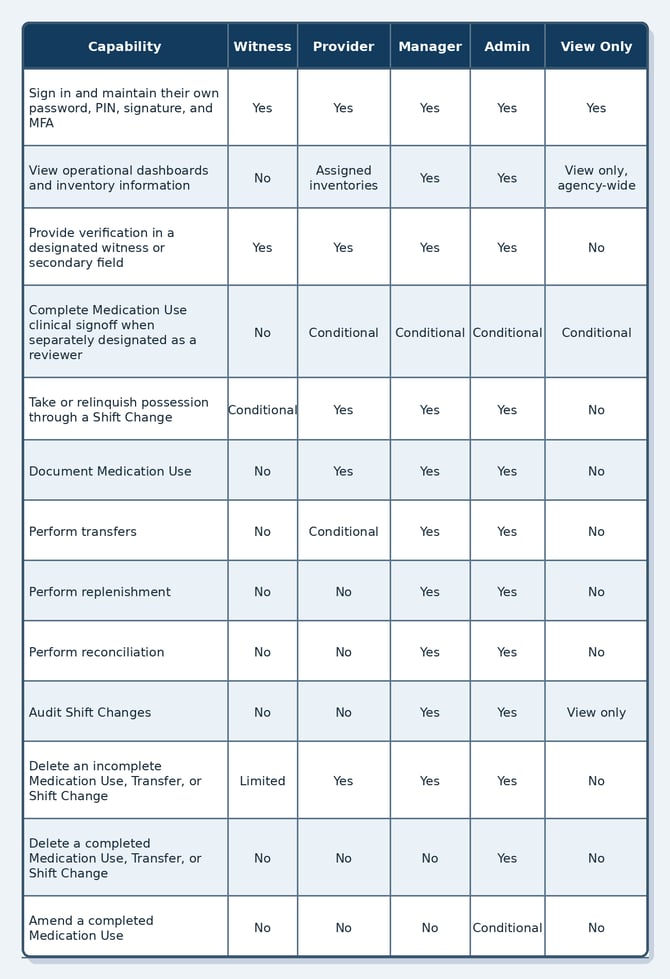
Administrative, inventory, and compliance permission matrix
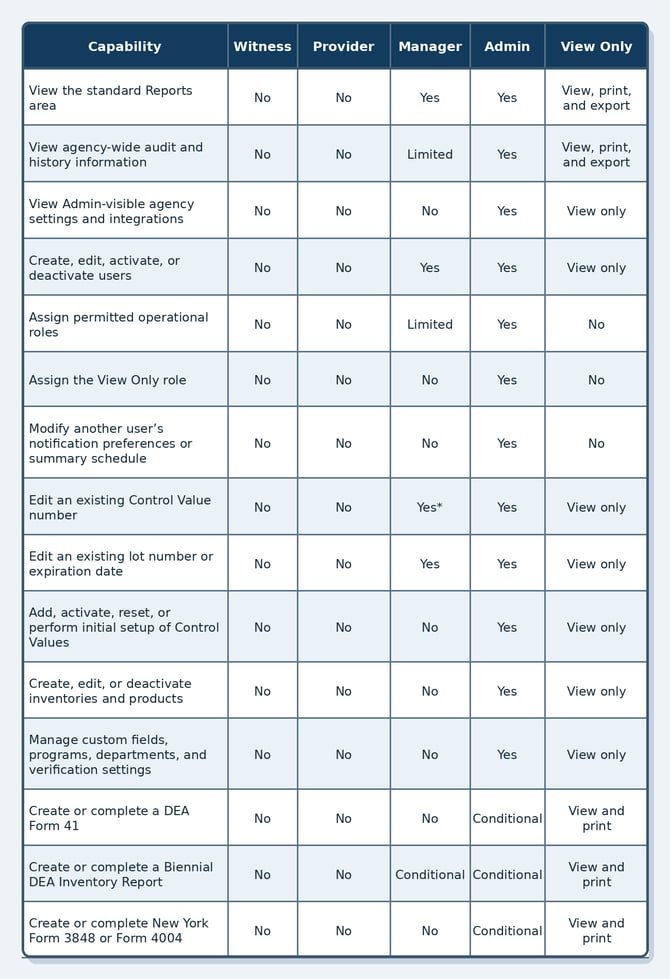
*Manager access to replace existing Control Value numbers is part of an upcoming permission enhancement and may not appear until the related release is deployed.
Conditional permissions and limitations
Witness Possession
The base Witness role does not include inventory or operational access.
When the optional Allow Witness Possession feature is enabled for an agency, Witness users may participate in the custody lifecycle for active inventories associated with them. This may include:
- Starting or resuming a Shift Change
- Completing required counts
- Completing seal and Control Value checks
- Entering required temperature information
- Taking possession
- Relinquishing possession through a handoff
- Canceling or deleting their own incomplete Shift Change when needed to recover the custody workflow
Witness Possession does not provide general Provider access. A possession-enabled Witness still cannot document Medication Use, perform transfers or replenishments, reconcile inventory, browse general inventory history, or run reports.
Medication Use Review
Medication Use Review is separate from the user’s base permission level.
A Provider, Manager, Admin, or View Only user may complete clinical signoff only when:
- Medication Use Review is enabled for the agency.
- The user is explicitly designated as an authorized Medication Use Reviewer.
- The Medication Use is eligible for review.
- The user meets the required PIN, signature, and account-status requirements.
For View Only users, clinical signoff is the only operational write exception. It does not allow the reviewer to change medication details, administered or wasted amounts, the administering provider, witness information, inventory transactions, or configuration.
Provider transfers
Providers can normally perform transfers for inventories they are authorized to access.
An agency may configure Schedule2.IT to restrict transfers to Managers and Admins. Inventory associations, open workflows, Control Values, seals, and transaction-integrity safeguards may also affect whether a transfer can be started or completed.
Deleting incomplete records
Providers, Managers, and Admins can generally cancel or delete an incomplete Medication Use, Transfer, or Shift Change when they are authorized to access the associated inventory.
Schedule2.IT may block deletion when:
- Another workflow has locked the inventory.
- The record is connected to later activity.
- Products or Control Values have been used in a subsequent transaction.
- Deletion would prevent Schedule2.IT from safely restoring inventory history.
A base Witness cannot delete operational records. A possession-enabled Witness may delete only their own incomplete Shift Change when necessary to recover the custody workflow.
Deleting completed records
Only Admins and S2 System Admins can delete a completed Medication Use, Transfer, or Shift Change.
Deleting a completed record may require an explanatory comment and creates an audit-history entry. Schedule2.IT may prevent deletion when later activity depends on the record or when the record is connected to other compliance information.
Managers cannot delete completed Medication Uses, Transfers, or Shift Changes.
Amending a completed Medication Use
When the Medication Use amendment feature is enabled, an Admin may correct a completed Medication Use without requiring the original Provider to recreate the record.
Depending on the record, the Admin may be able to correct:
- Date and time
- Medication
- Lot number
- Expiration date
- Control Value
- Amount administered
- Amount wasted
- Run or incident number
- Waste method
- Custom-field responses
An explanatory comment is required. Schedule2.IT records the original and corrected information in audit history and updates the related inventory transaction information.
When an amendment introduces a new verification requirement, Schedule2.IT enforces that requirement. For example, adding wasted medication may require a witness when the agency requires witness verification for waste.
Providers, Managers, Witnesses, and View Only users cannot amend completed Medication Uses.
Editing Control Values, lot numbers, and expiration dates
Managers and Admins can correct existing lot numbers and expiration dates for inventories they are authorized to access.
Admins can perform the full Control Value setup and maintenance workflow, including initial setup, activation, and reset functions.
An upcoming enhancement also allows Managers to replace an existing Control Value number when a label, bag, or other serialized item is damaged. The Manager remains limited to inventories they are authorized to access.
Control Value replacements require a reason or comment and are recorded in audit history with the original value, replacement value, acting user, and date and time.
View Only users may inspect this information but cannot change it.
Federal and state compliance forms
The compliance forms available to an agency depend on its configuration, subscriptions, inventory types, and state requirements.
DEA Form 41
Admins can create and complete DEA Form 41 records for eligible DEA Form 41 quarantine inventories.
Managers and Providers cannot complete DEA Form 41 records.
View Only users may view and print existing DEA Form 41 records but cannot initialize, edit, sign, complete, or delete them.
Biennial DEA Inventory Report
Managers and Admins can create and complete Biennial DEA Inventory Reports when the feature is available for the agency.
This may include reviewing count warnings, selecting the appropriate opening- or closing-of-business designation, entering notes, providing required verification, and saving the completed report.
View Only users may view and print the report but cannot create, change, sign, complete, or delete it.
New York Form 3848 and Form 4004
Admins can create and complete supported New York controlled-substance forms when New York Forms are enabled for the agency.
This includes:
- New York Form 3848
- New York Form 4004
View Only users may view and print these forms but cannot initialize, edit, sign, submit, or delete them.
Managers, Providers, and Witnesses do not receive New York form-management access.
Notification administration
Notification preferences are associated with an individual user and agency.
Only an Admin may change another user’s:
- Email-notification selections
- Push-notification selections
- Notification delivery method
- Summary-email frequency
- Summary-email days
- Summary-email delivery time
Users may manage their own notification settings when that option is available for their role.
Managers may manage user accounts but cannot modify another user’s notification preferences or delivery schedule.
View Only users can view Admin-visible user information but cannot modify another user’s notifications.
Report access
Managers and Admins can access the standard Reports area.
Available reports may include:
- Medication Use
- Inventory
- Lot and expiration
- Expiring and expired medication
- Shift Changes
- Shift Change discrepancies
- Incomplete Shift Changes
- Control Values
- Inventory and user activity
- Key performance indicators
View Only users may view, print, download, and export reports for the agency but cannot change the underlying information.
The reports available to a user may depend on:
- Permission level
- Agency features
- Inventory and agency scope
- Departments
- Control Values
- Integrations
- State-specific functionality
Amended Medication Use information is reflected in applicable records and reports. A dedicated Medication Use Amendment Report may be released separately.
Corporate organizations
Where corporate access is configured:
- A corporate Admin may receive Admin access to the corporate organization’s child agencies.
- A corporate View Only user may receive inherited View Only access to current and future child agencies.
- Inherited View Only access remains read-only and cannot be changed by the child agency.
- View Only access alone does not grant Medication Use Reviewer authority.
- A corporate View Only user may complete clinical signoff across review-enabled child agencies only when separately designated as a corporate Medication Use Reviewer.
Inventory associations and feature settings
A permission level defines the types of actions a user may perform, but it does not automatically grant access to every inventory.
The user must also be associated with the appropriate agency, inventory, and department when those associations apply. Agency feature settings may further enable or restrict individual workflows.
For example:
- A Provider may have access to one truck inventory but not another.
- An agency may restrict transfers to Managers and Admins.
- A Witness may have inventory associations but cannot use them unless Witness Possession is enabled.
- An Admin may amend completed Medication Uses only when the amendment feature is enabled.
- Compliance forms appear only when the agency and applicable inventory are configured for them.
- View Only users have agency-wide read scope and do not receive operational authority from an inventory association.
How to view or change a user’s permission
Authorized users can review or change a user’s permission level by following these steps:
- Navigate to Admin → Users → User List.
- Select the user.
- Open the Security section.
- Locate the Permission field.
- Select the appropriate permission level.
- Select Permissions Info to view the in-product comparison.
- Save the user.
Managers may assign only the roles allowed by the existing role-assignment hierarchy.
Only Admins and S2 System Admins may assign or remove the View Only role.
When assigning permissions, use the least-privileged role that still allows the user to perform their required responsibilities.
The S2 System Admin role is reserved for authorized Schedule2.IT personnel and is not included in this agency permission matrix.